For the complete documentation index, see llms.txt. Markdown versions of all docs pages are available by appending .md to any docs URL.
Transformations
Verified : Code examples on this page have been automatically tested and verified.Modify header and body information for requests and responses.
Note
Agentgateway supports more than one configuration style. Where a feature can also be configured in the simplified llm or mcp modes, the examples on this page show each option in tabs. For more information, see Routing-based configuration.
Agentgateway uses transformationTransformationThe process of modifying HTTP requests or responses as they pass through agentgateway. Transformations can change headers, body content, and other request/response attributes. templates that are written in Common Expression Language (CEL)CEL (Common Expression Language)A simple expression language used throughout agentgateway to enable flexible configuration. CEL expressions can access request context, JWT claims, and other variables to make dynamic decisions.. CEL is a fast, portable, and safely executable language that goes beyond declarative configurations. CEL lets you develop more complex expressions in a readable, developer-friendly syntax.
To learn more about how to use CEL, refer to the following resources:
Note
Try out CEL expressions in the built-in CEL playground in the agentgateway UI before using them in your configuration.
Header transformation
You can add, set, or remove request and response headers with agentgateway’s transformation policies.
Note
To provide a specific string value, add your string in single quotes ' followed by double quotes ". This way, the string is interpreted as a string value. If you provide the value without quotes or with double quotes only, it is interpreted as a CEL expression.
Route-level header transformation
Transform headers after route selection. You can configure the transformation in the UI or in your configuration file.
The following steps add the same transformations policy as the Simplified (LLM) example in the Config file tab.
Create a configuration with an LLM model, but no transformation policy. You add the policy in the UI.
# yaml-language-server: $schema=https://agentgateway.dev/schema/config
llm:
  models:
  - name: "*"
    provider: openAI
    params:
      apiKey: "$OPEN_AI_APIKEY"
Start agentgateway with this configuration.
Open http://localhost:15000/ui/llm/policies (LLM > Policies), and click the Transformations tile.
Expand Request transformations. In Add headers, add the following headers. For each header, enter the header name and the CEL expression, and click Add.
x-request-pathwithrequest.pathx-client-ipwithsource.address
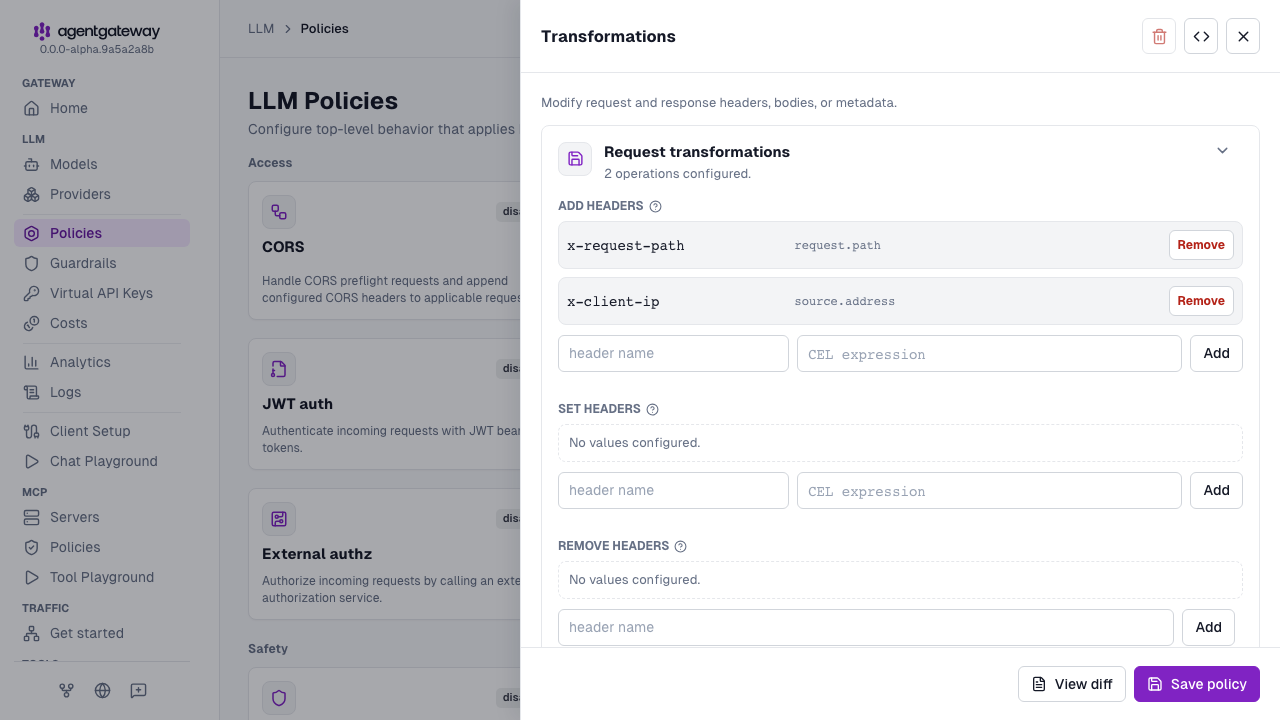
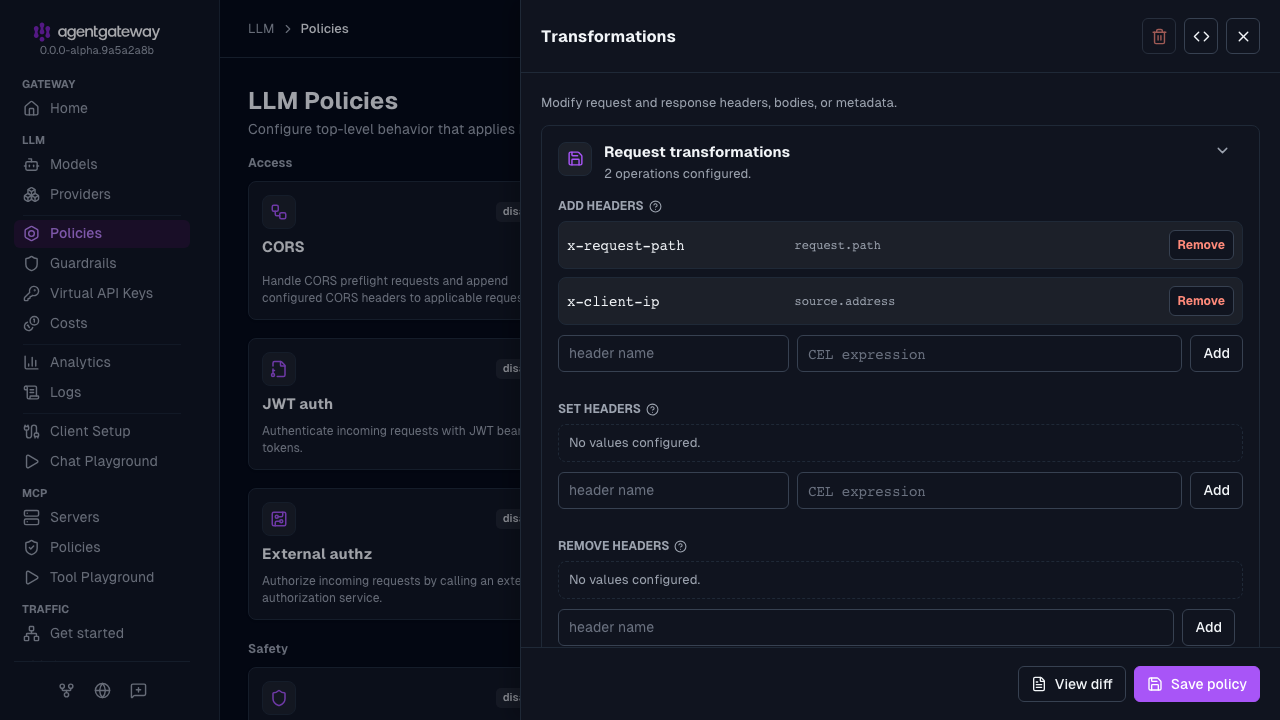
Expand Response transformations.
- In Add headers, enter
x-response-codeandstring(response.code), and click Add. - In Remove headers, add
serverandx-content-type-options. For each header, enter the name, and click Add.
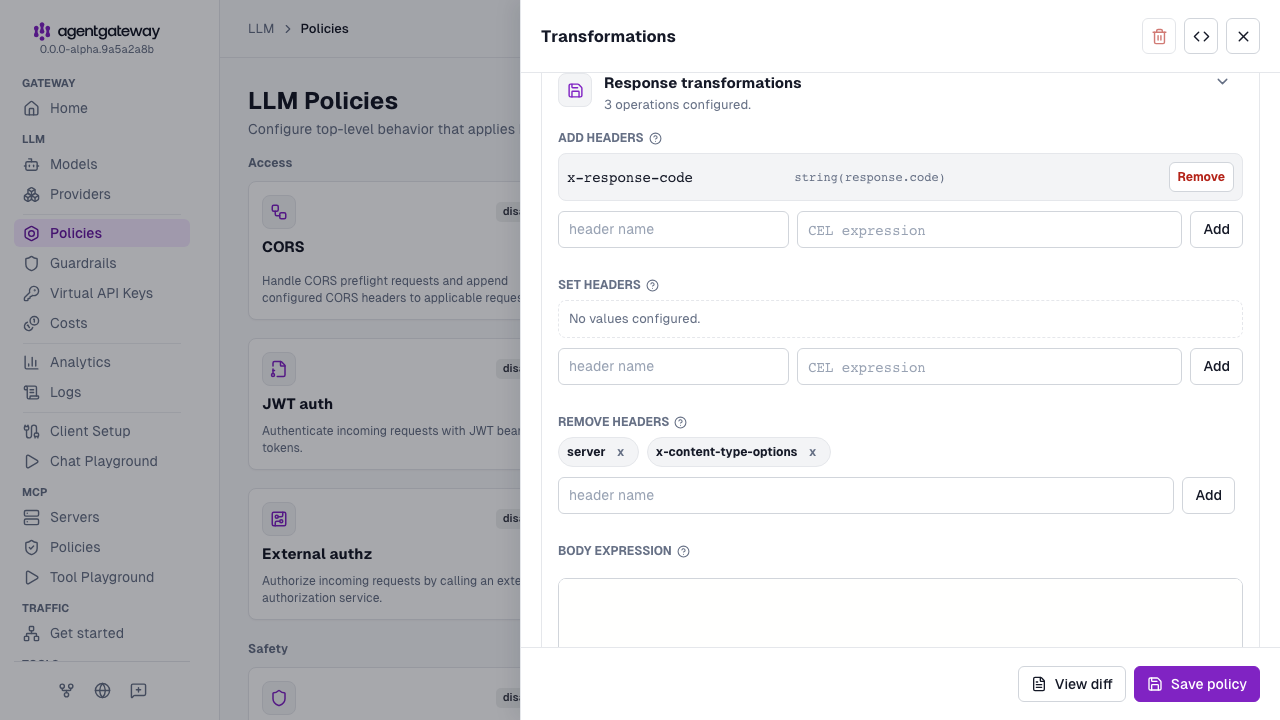
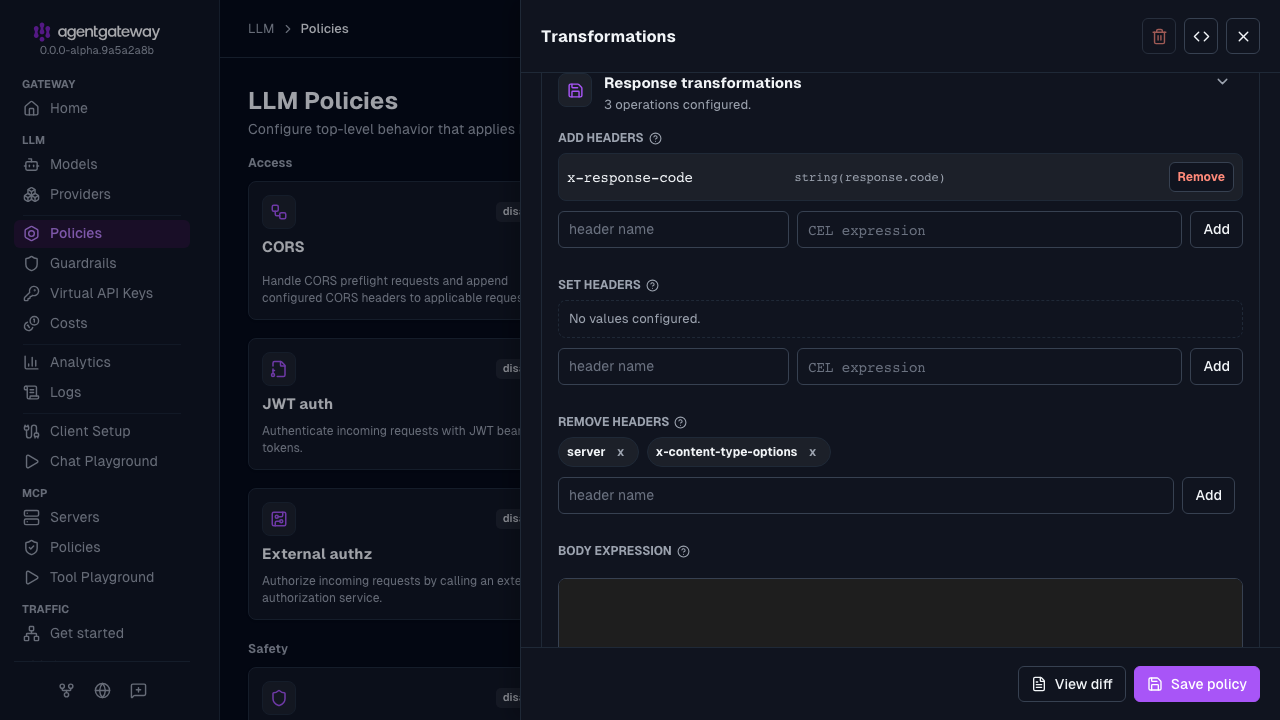
- In Add headers, enter
Click Save policy.
You can also add a transformation policy in MCP > Policies, or in the Route policies section of a named route in Traffic > Routes. The Routing-based example uses an inline ai backend, which the UI edits only as raw YAML. For that example, use the Config file tab.
Whether the UI can save depends on your storage mode. For more information, see Save changes from the UI.
Listener-level header transformation
Transform headers before route selection by attaching the policy at the listener level:
The following steps add the same transformations policy as the Simplified (LLM) example in the Config file tab.
Create a configuration with an LLM model, but no transformation policy. You add the policy in the UI.
# yaml-language-server: $schema=https://agentgateway.dev/schema/config
llm:
  models:
  - name: "*"
    provider: openAI
    params:
      apiKey: "$OPEN_AI_APIKEY"
Start agentgateway with this configuration.
Open http://localhost:15000/ui/llm/policies (LLM > Policies), and click the Transformations tile.
Expand Request transformations. In Add headers, enter
x-gatewayfor the header name and"agentgateway"for the CEL expression, and click Add. The double quotes make the value a string. The UI saves the value as'"agentgateway"'.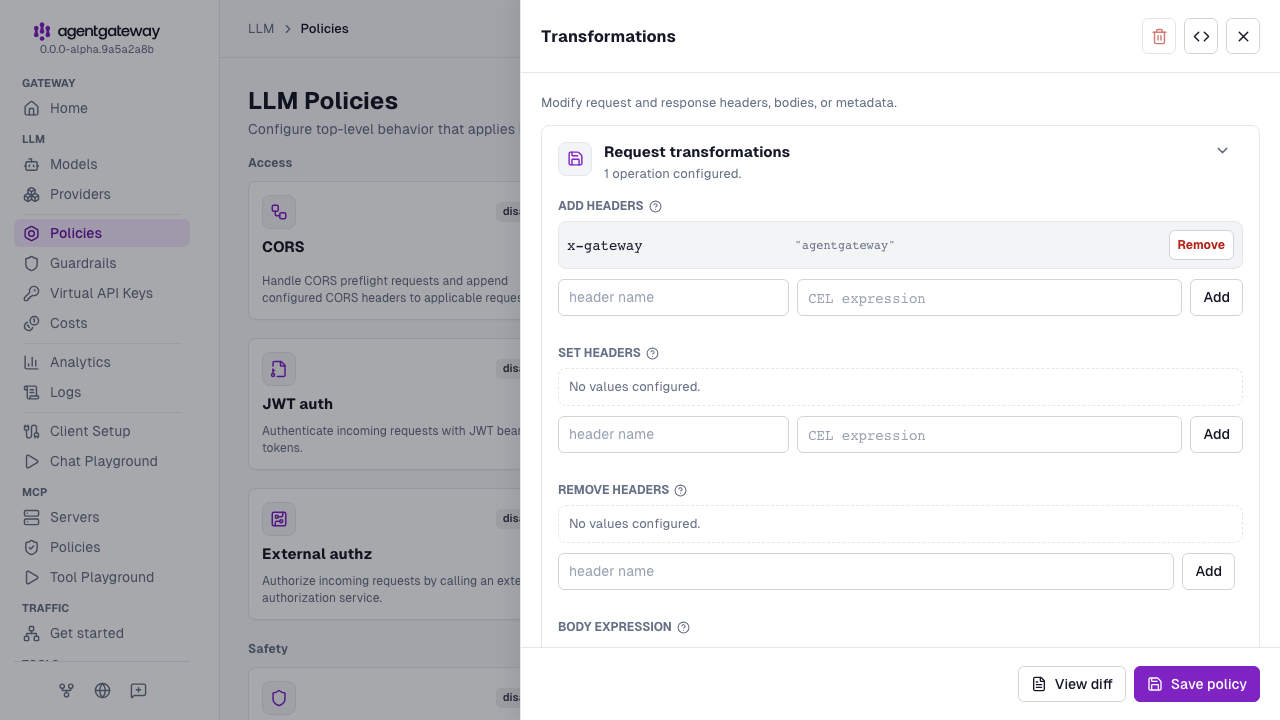
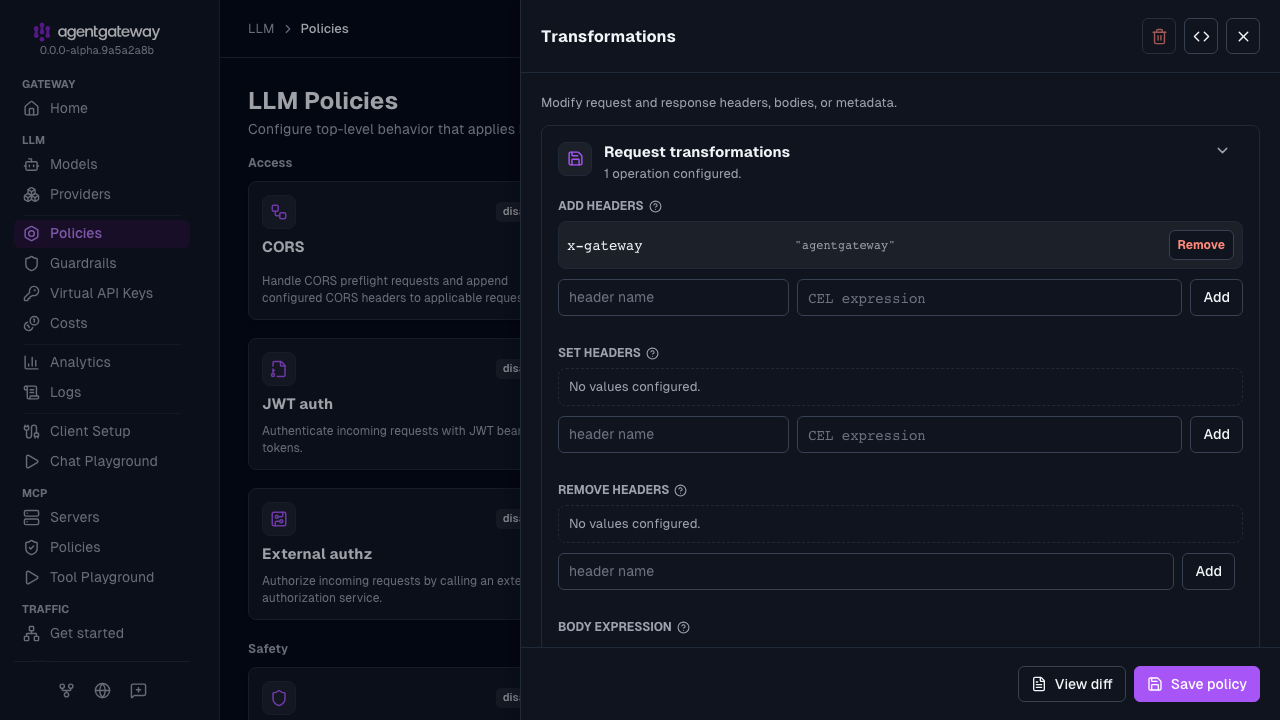
Click Save policy.
For the Routing-based example, add the policy at the gateway level instead.
- Open Traffic > Gateways, and click the Edit gateway icon for the
defaultgateway. - Click Gateway policies, and then click the Transformations tile.
- Expand Request transformations. In Add headers, enter
x-gatewayfor the header name and"agentgateway"for the CEL expression, and click Add. Then, click Save. - Close the Gateway policies drawer, and click Save gateway.
Body transformation
You can provide a custom body for a request or response.
When the body CEL expression returns a string or bytes value, the result replaces the original body. When the expression returns null, the original body is left unchanged. To send JSON null, return the string "null". To clear the body, return an empty string. If the expression fails, the transformation returns an error before the body is replaced.
Note
To provide a specific string value, add your string in single quotes ' followed by double quotes ". This way, the string is interpreted as a string value. If you provide the value without quotes or with double quotes only, it is interpreted as a CEL expression.
The following steps add the same transformations policy as the Simplified (LLM) example in the Config file tab.
- Create a configuration with an LLM model, but no transformation policy. You add the policy in the UI.
# yaml-language-server: $schema=https://agentgateway.dev/schema/config llm: models: - name: "*" provider: openAI params: apiKey: "$OPEN_AI_APIKEY" - Start agentgateway with this configuration.
- Open http://localhost:15000/ui/llm/policies (LLM > Policies), and click the Transformations tile.
- Expand Request transformations, and enter
"Hello " + default(request.headers["x-user-name"], "guest")for the Body expression. - Expand Response transformations, and enter
"Response code: " + string(response.code)for the Body expression. - Click Save policy.
The UI saves each body expression as a single-quoted string instead of a | block. Both forms set the same expression.
Conditional execution
To run a transformation only when a CEL expression matches, use the conditional field. For example, you can transform internal traffic only and leave external traffic untouched. For details, see Conditional policies.